Setting up an Event using the Clone Function
Resiada's Clone Event tool lets you build a new event quickly from your hotel template. When you clone an event, Resiada copies over your hotel details and room-type configuration from your template so you don't have to rebuild it. You'll just have to set up the event name, dates, and which room types to include.
STEP 1 Open the Clone Event Panel
From the Resiada dashboard, click Events in the top right corner. A menu appears with two options: Create New Event and Clone Event. Select Clone Event.

The Events menu sits in the top right of your dashboard, next to Client Home.
STEP 2 Choose the Event to Clone
The Clone Event panel opens on the right side of your screen. Under Event to Clone, select your hotel template.
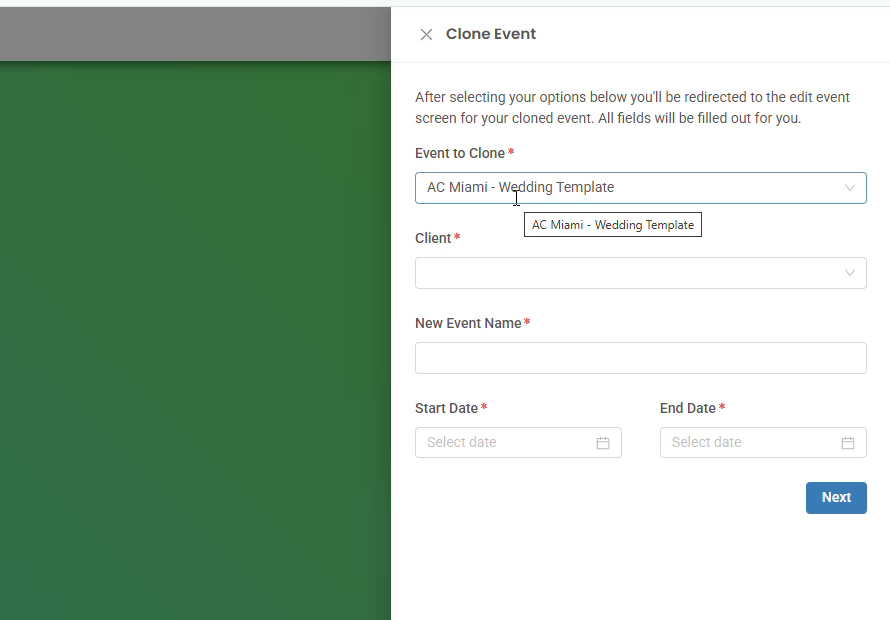
Select the event you want to copy from the Event to Clone dropdown.
STEP 3 Add Your New Event's Details
Next, fill in the remaining required fields:
- Client: This will default to your hotel name unless you have access to create an event for different hotels. In that case, please select the client from the dropdown to create the event under the appropriate hotel.
- New Event Name: Give a name to the event you are building.
- Start Date and End Date: enter the event's dates. Click into either field to open the calendar picker.
Once everything is filled in, click Next.
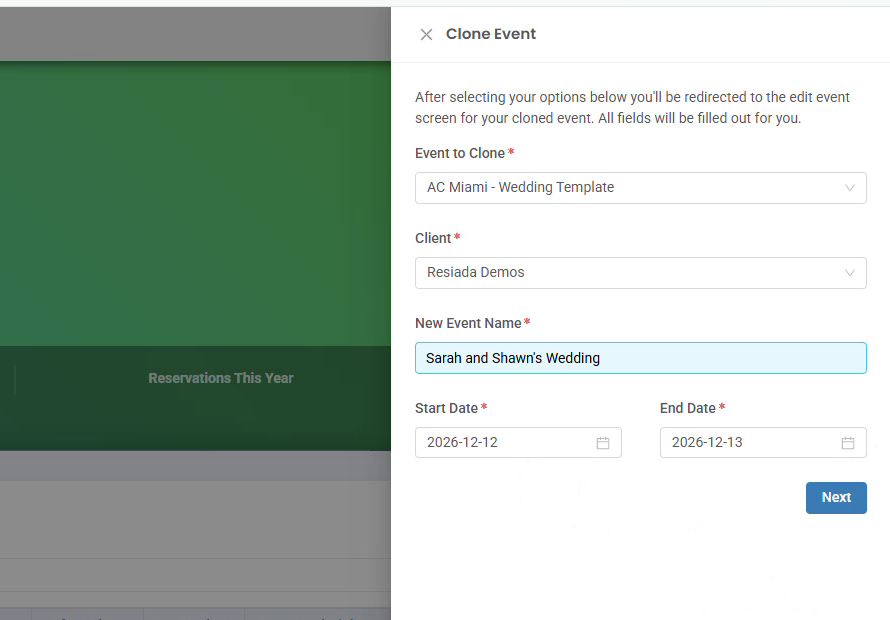
Add the event name, and dates.
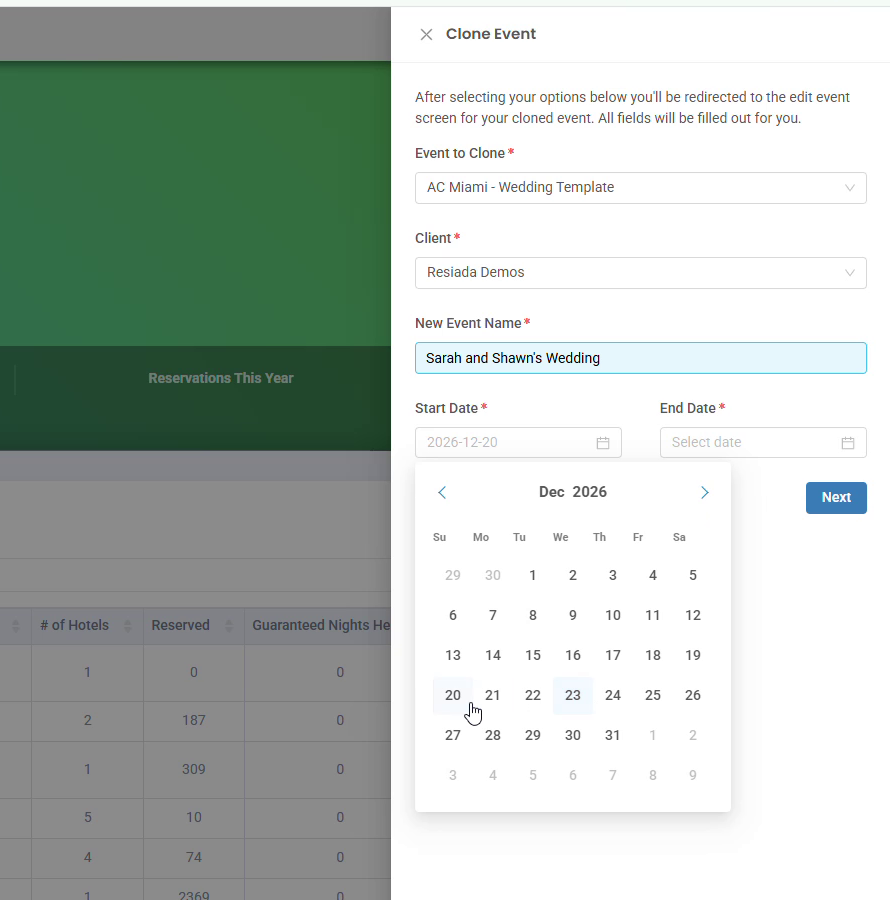
Click into the Start Date or End Date field to choose dates from the calendar.
STEP 4 Select Which Hotels and Room Types to Copy
The next screen lists all the room types with all selected by default.
Uncheck any room type you don't want carried over to your new event.
Use Select All to include everything at once, or the arrow next to a hotel name to expand or collapse its room list.
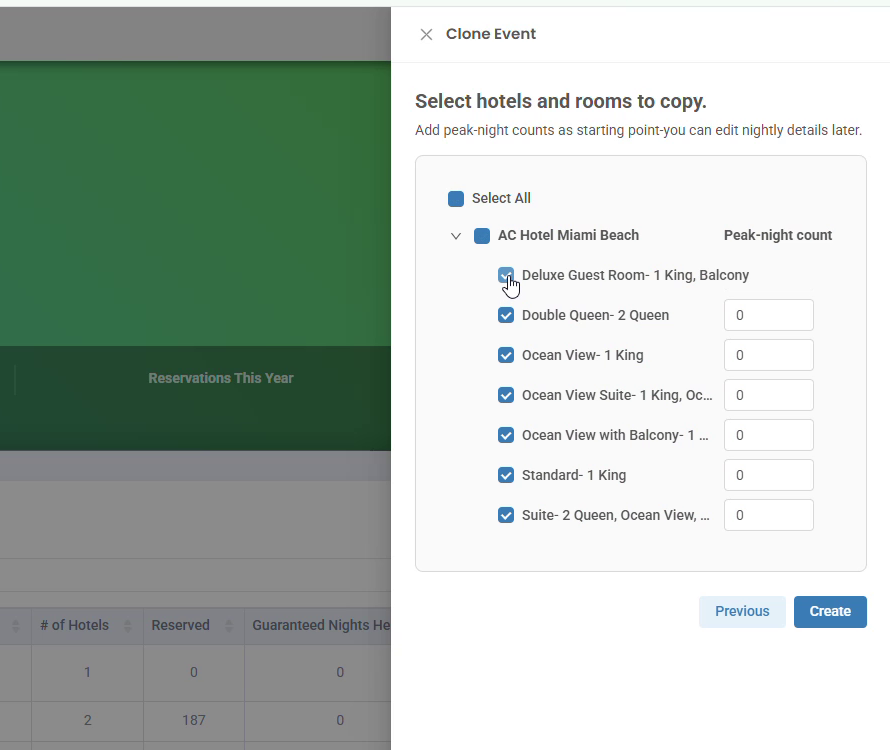
By default, every room type from the original event is selected.
STEP 5 Add Peak-Night Counts (Optional)
Next to each room type you've kept, you can enter a peak-night count.
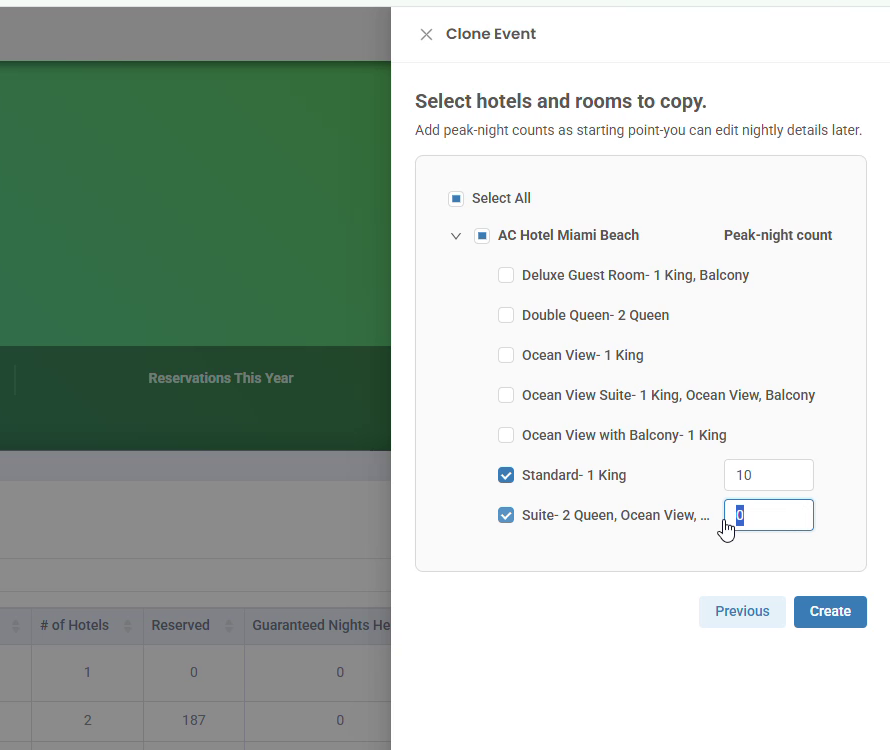
Enter the peak-night count for each room type you're keeping, and uncheck any you don't need.
STEP 6 Create Your Event
Once you're happy with your room selections, click Create.
Resiada confirms the clone was successful with a notification in the top right corner and lets you know your event is being created.
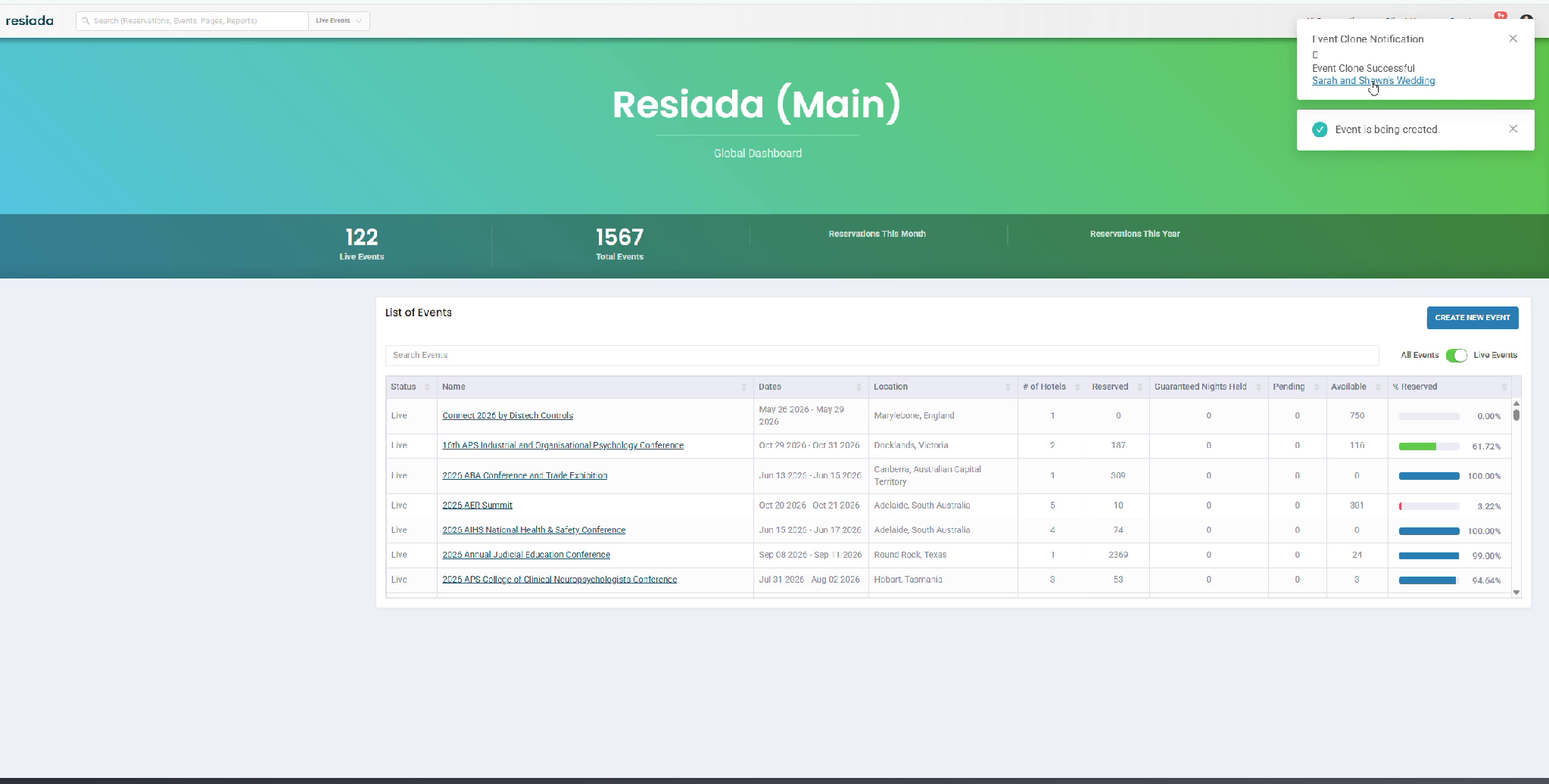
Resiada confirms the clone was successful and begins creating your event.
STEP 7 Open Your New Event
Once your event is created, find it by clicking Events in the top right corner and typing your event name in the search bar. Click the event to open its Dashboard. Then click Manage in the event menu bar and select Edit Event to open Event Setup. From here, use the tabs across the top (Event, Features, Settings, Payment, Hotels, Room Blocks, Sub Blocks, Allotment, Designer, Links, and Summary) to review and adjust every detail before your event goes live.
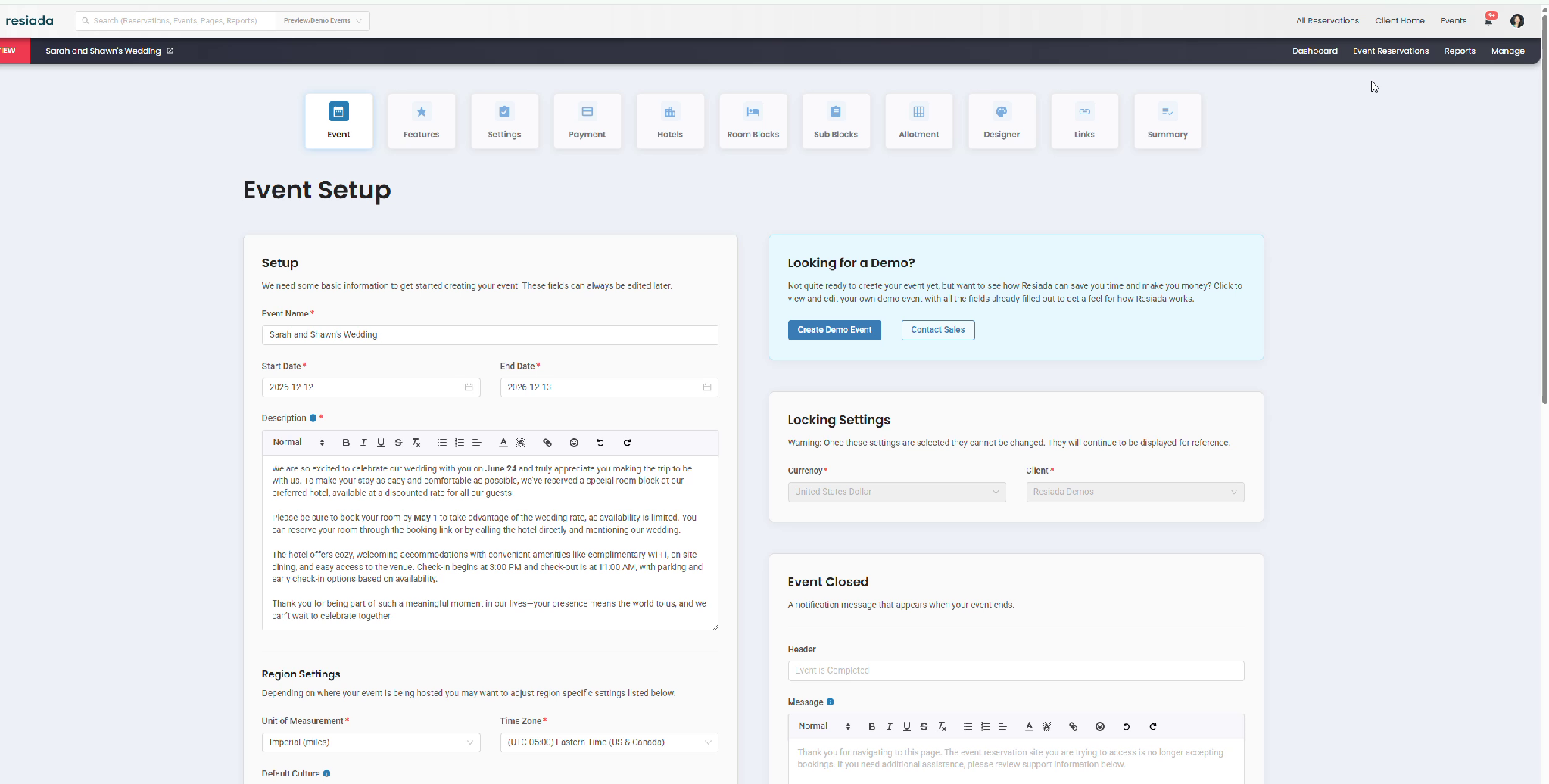
Your cloned event opens directly into Event Setup, with details pre-filled and ready to review.