Managing Your Room Inventory
The Allotment tab (Allotment Manager) is where you divide your room inventory across the different sources that are accessible by sub blocks, deciding exactly how many rooms, on which nights, go to each one.
STEP 1 Open the Allotment Tab
From your event's Event Setup page, click the Allotment tab in the tab bar at the top of the screen, it's the eighth tab, right after Sub Blocks. Use Hotel Selection to view a specific hotel or All Hotels, and Date Range Filter to narrow the table down to specific dates.

The Allotment tab sits eighth in the Event Setup tab bar.

Filter the allotment table by hotel and by date range.
STEP 2 Review the Room Night Allotments Table
Expand a room type to see the sources it can be allotted to, in this example, Standard - 1 King can be allotted to two sources, Family and Wedding Guests. The room type's top row shows the total rooms allotted out of total available for that date; each source row below it shows how many of those rooms are currently assigned to that source.
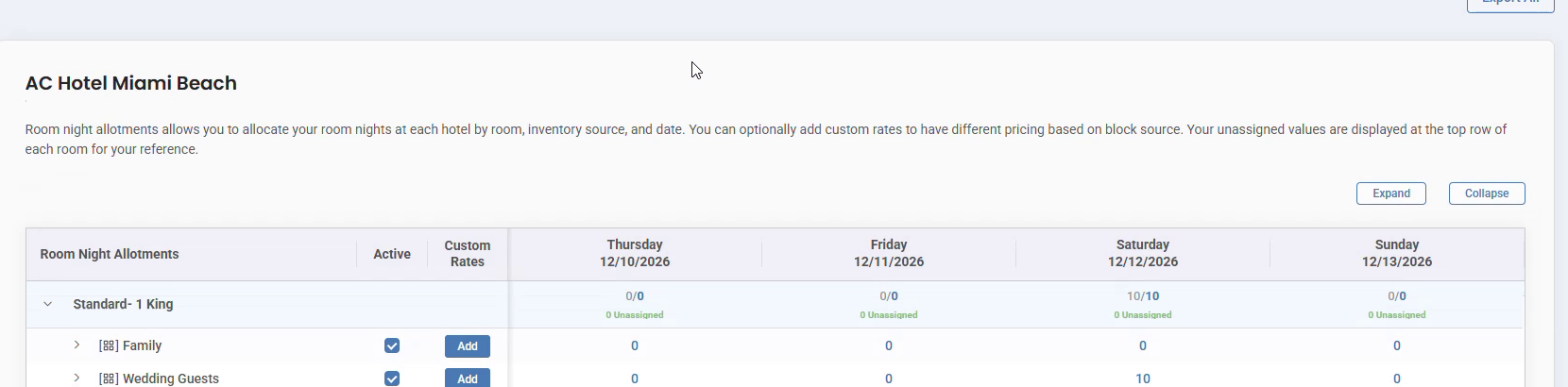
Each room type expands to show every source it pulls inventory from.
STEP 3 Split Your Inventory Between Sources
Click into a source's cell for a specific date and enter how many of that night's available rooms should go to that source. In this example, Saturday's 10 available Standard - 1 King rooms are split between the two sources , 2 going to Family and 8 to Wedding Guests.
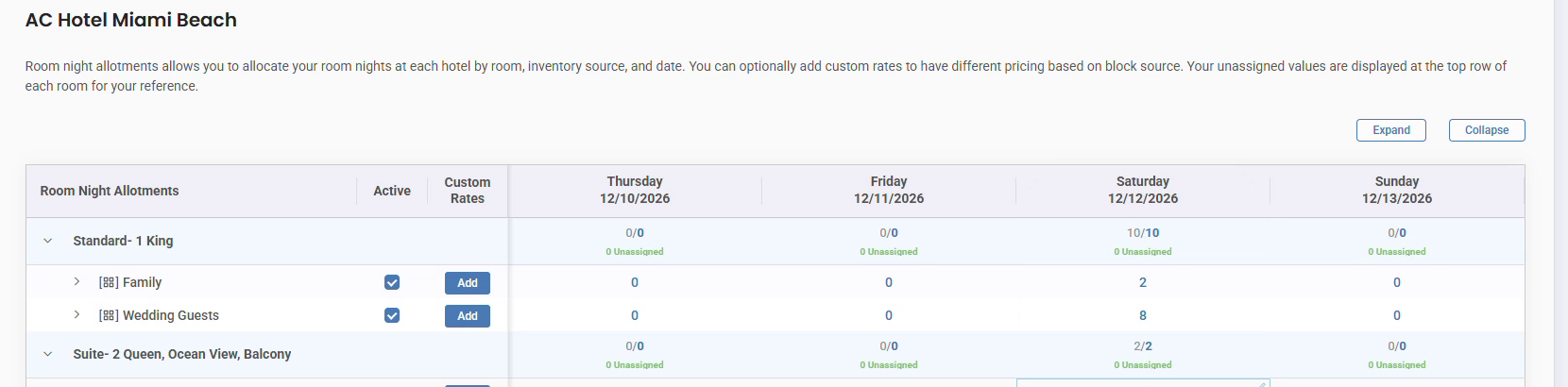
Splitting a night's available rooms across two sources, 2 to Family, 8 to Wedding Guests.
STEP 4 Save or Continue
Once you've reviewed everything above:
- Click Save: to save your progress without leaving the Allotment tab.
- Click Next: to move on to the Designer tab, the next step in Event Setup.

Click Save to save your progress, or Next to continue to the Designer tab.