Setting Up The Room Types Available for the Event
The Room Blocks tab, also called the Room Block Manager, is where you set how many rooms are available each night and what they cost, broken out by room type and occupancy level.
STEP 1 Open the Room Blocks Tab
From your event's Event Setup page, click the Room Blocks tab in the tab bar at the top of the screen, it's the sixth tab, right after Hotels.

The Room Blocks tab sits sixth in the Event Setup tab bar.
STEP 2 Review the Room Night Allotments Table
Cloned this event? Room types and peak room count will already be set up. You just need to double check them.
Each room type expands into a row for every occupancy level, for example, Standard - 1 King breaks into 1 Occupant and 2 Occupants. For each date column, the room type row shows how many rooms are allotted out of the total, plus how many are still unassigned.
Missing a room type? No worries, click New Room to add another room type, or click a room's name to edit its description and photos.
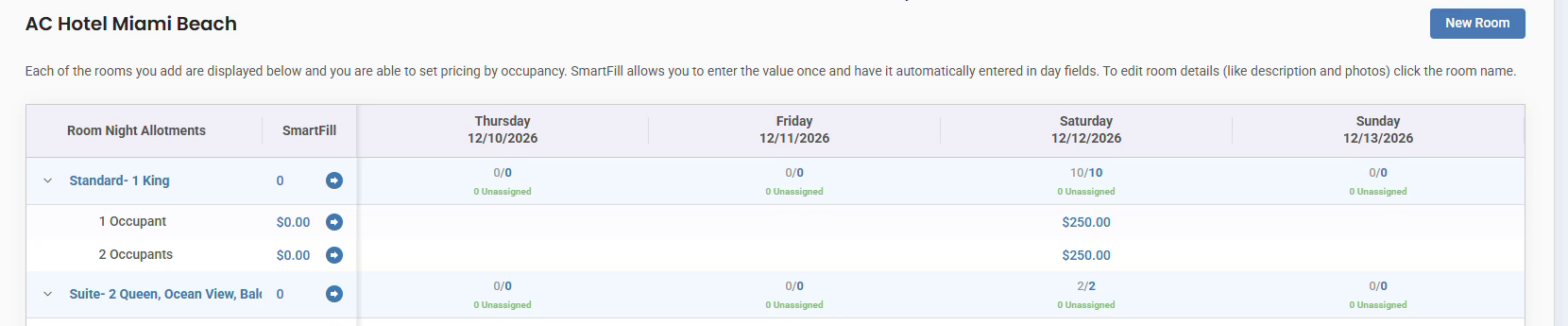
Each room type expands to show pricing by occupancy level, for every date in view.
STEP 3 Set Your Room Quantity for Each Date
For any night missing room quantity, click into a room type's allotment cell for any date and enter how many rooms you're blocking for that night. Newly added rooms show as unassigned (in red) until they're allotted to a source (subblock).

Click into a date's allotment cell to set how many rooms are available that night.
STEP 4 Set Your Rate by Occupancy and Date
Click into any occupancy row's rate cell for a specific date to set that night's price. Rates don't have to match across every night, for instance, you can set a higher rate for a Friday or Saturday, or a different rate for extra nights outside your group rate, like a pre- or post-event stay.

Click into a rate cell to set that occupancy level's price for a specific date.
STEP 5 Finish Filling In Your Rates
Repeat Steps 4 and 5 for each date and occupancy level until every night is priced. If a rate repeats across several dates, Resiada offers a faster option: the SmartFill column next to each row lets you enter a value once and apply it to every date field automatically, instead of entering it night by night.
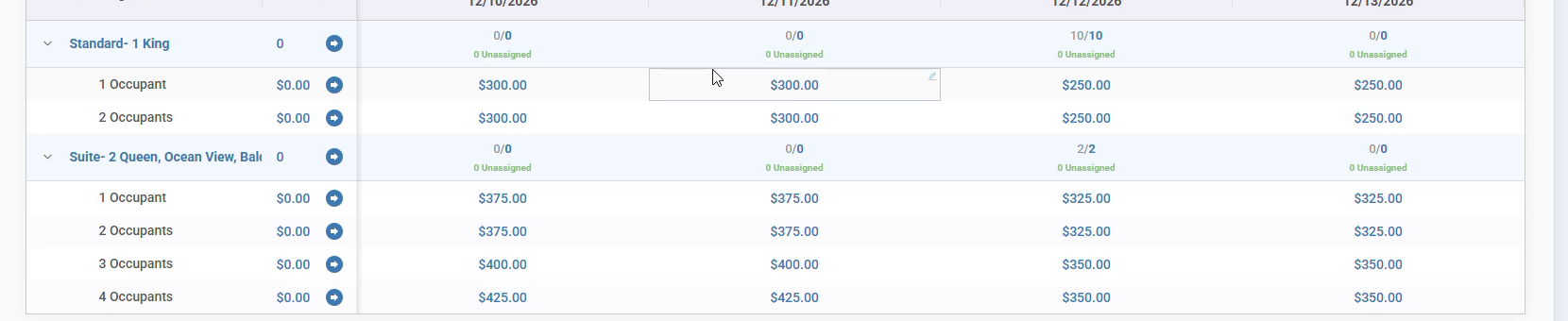
Once rates are set, each occupancy level shows its price for every date.
STEP 7 Save or Continue
Once you've reviewed everything above:
- Click Save: to save your progress without leaving the Room Blocks tab.
- Click Next: to move on to the Sub Blocks tab, the next step in Event Setup.

Click Save to save your progress, or Next to continue to the Sub Blocks tab.