Understanding Inventory Sources
You’ll see the word “source” on the Sub Blocks and Allotment tabs. Sources work behind the scenes to connect your room block to the groups that book it. For most hotel events, your template sets everything up for you and there’s nothing to change. This guide explains what a source is, where you’ll see one, and the few times you might work with sources directly.
|
THE SHORT VERSION A source is a pool of rooms from your room block. Each sub block books from one or more sources. Guests never see a source, only the sub block. When you create a sub block, Resiada creates a matching source for it automatically, so most events never need any source setup. |
STEP 1: See How Your Inventory Flows
Your rooms reach your guests in three layers:
|
Room Block Your rooms and rates per night |
→ |
Source A behind-the-scenes bucket of those rooms |
→ |
Sub Block The guest-facing group that books |
- Room Block. The rooms and rates you set for each night on the Room Blocks tab.
- Source. A grouping of your hotel’s room types that sub blocks can book from. You decide how many rooms each source gets, night by night, on the Allotment tab.
- Sub Block. The guest-facing group, with its own name, payment method, and booking link. Each sub block is assigned the source(s) it can book from.
STEP 2: Know Where You’ll See Sources
Sources show up in three places in Event Setup:
- Sub Blocks tab, Manage Sources. Next to the Sub Blocks heading, the Manage Sources tab lists every source in your event, with its inventory type and available room nights.
- Inside a sub block, Inventory Sources Assigned. Shows which source(s) that sub block books from. Use Add and Remove to change them.
- Allotment tab. Each room type expands to show its sources. This is where you set how many rooms each source gets on each night.
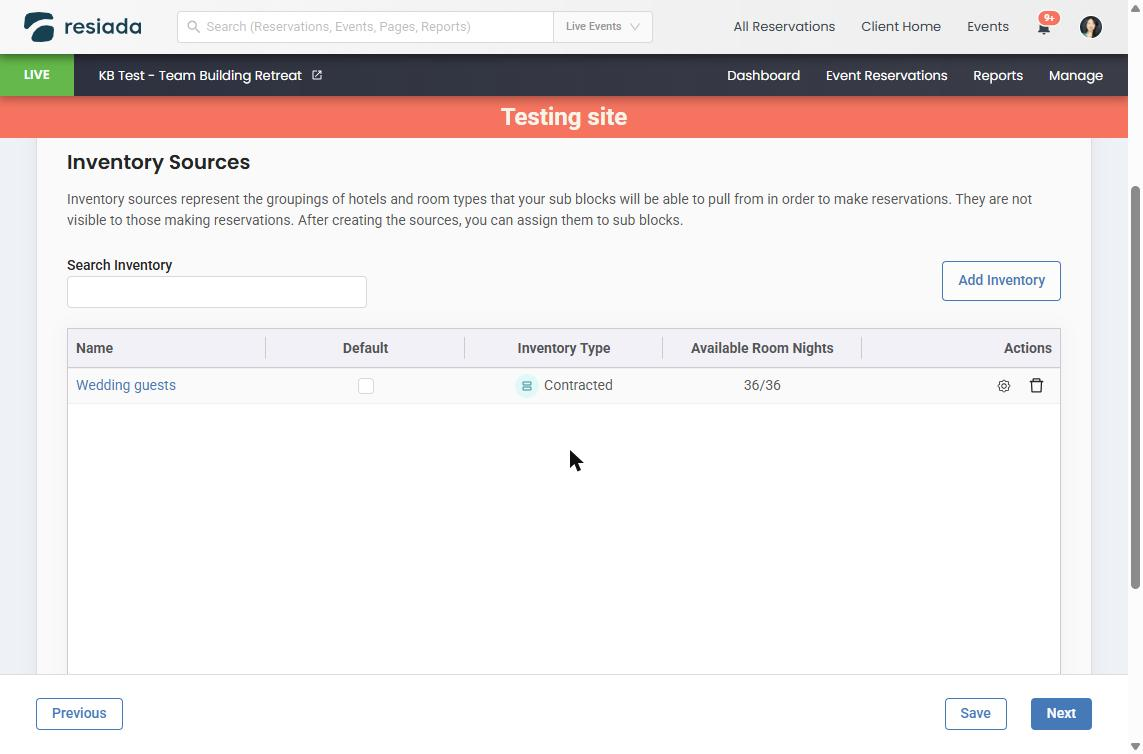
Manage Sources lists every source in your event.
STEP 3: Let Resiada Create Your Sources
To keep setup simple, every time you create a sub block, Resiada automatically creates a source with the same name and connects the two. Your template already comes with one sub block and its matching source, with all of your rooms allotted to it.
For a typical event with one group of guests, that’s all you need. You don’t have to open Manage Sources or change anything on the Allotment tab.
|
GOOD TO KNOW Renaming a sub block doesn’t rename its source. If you rename your template’s sub block, the source keeps its original name on the Manage Sources and Allotment tabs. That’s fine: guests never see source names, only sub block names. |
STEP 4: Create a Source Yourself (Optional)
If you’d rather set up a pool of rooms first and decide who books from it afterward, you can create a source directly. On the Sub Blocks tab, click Manage Sources, then Add Inventory.
- First, choose the hotel and the room types to pool into this source.
- Then, choose the sub block(s) that can book from the rooms in this source.
Once the source is created, go to the Allotment tab and set how many rooms it gets on each night.
STEP 5: Protect Rooms for a Sub Block (Optional)
When a sub block is connected to a source, you can set aside dedicated, protected inventory for it. Open the sub block from the Sub Blocks list and, in the General section, check Assign dedicated inventory for this sub block.
STEP 6: Add a Backup Source (For More Complex Events)
A sub block can book from more than one source, in priority order. If the sub block’s first source sells out, guests can continue booking from the next source in line. Set source priority from the main Sub Blocks list.
Most hotel events won’t need this. It’s most useful for larger events where one group might sell out its rooms and you want to give it access to a secondary pool.
|
NOT USED FOR HOTEL EVENTS You may notice an Open Block Inventory feature on the Features tab and Custom Rates options on the Allotment tab. These are used by meeting planners booking across multiple hotels and don’t apply to your hotel’s events. You can leave them as they are. |